
You send your client one secure link for the questions, compliance documents and uploads you choose. Start with a full application, general app only or compliance only.
Start a send
Click Send application on a saved quote, a client's file, the dashboard or the Applications page. If you start from a quote, the client and the quote are attached, and the carrier you starred is picked for you when its questionnaire is turned on.
The send page has five numbered steps.
1. Client
Search clients by name or email, or fill in a new client's name, email and phone. The client needs a valid email in both modes: the secure link and new-device codes go there. For an existing client you can also Attach a quote, which adds the plan and recommendation to the package.
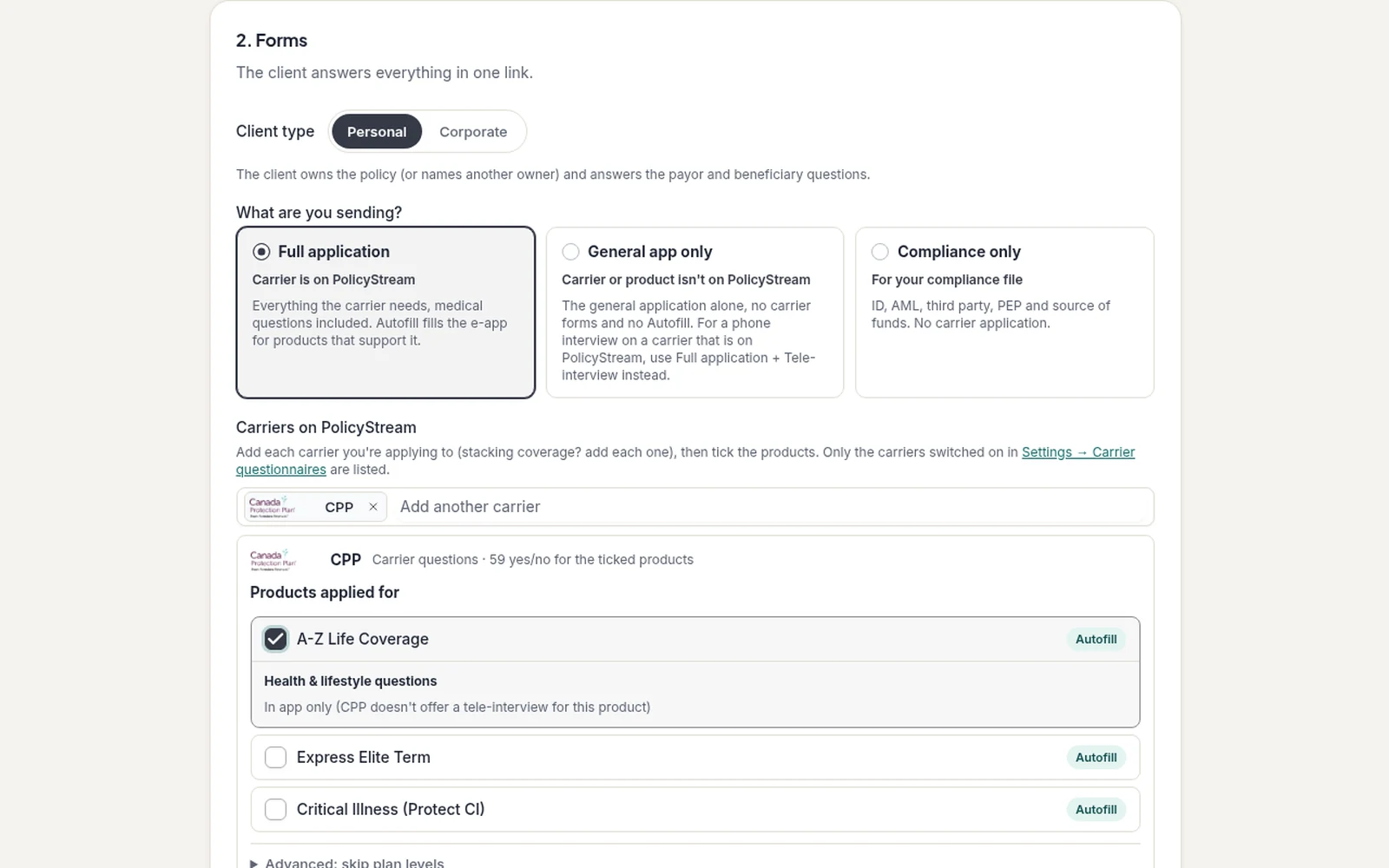
2. Forms
Choose Personal or Corporate for the client type, then answer What are you sending?
- Full application: the carrier is on PolicyStream. Collect everything the carrier needs, including medical questions. Autofill (beta) fills the carrier e-app for products that support it.
- General app only: the carrier or product isn't on PolicyStream. Collect about 99% of what carriers ask, minus medical questions. There's no carrier picker and no Autofill.
- Compliance only: collect ID, AML, third-party, PEP and source-of-funds details for your compliance file. No carrier application.
For a Full application:
- Under Carriers on PolicyStream, search for a carrier. Use Add another carrier if you're applying to more than one. Only carriers turned on in Settings → Carrier questionnaires are offered.
- Tick the Products applied for, grouped by type. A quote can preselect the matching products. Each product shows Autofill or You enter it, so you know whether you'll enter the answers in the carrier e-app yourself. Check Settings → Autofill for supported carriers.
- Answer any follow-up choices shown under a selected product: for example, Regular or Simplified underwriting, Student Savings Program, or the coverage type. Under Health & lifestyle questions, use the route offered for that product: some are In app only, while others offer or require a Tele-interview with the carrier.
- Check Carrier questions: the count follows the products you've ticked. No product ticked means 0 carrier questions, not every question for that carrier.
If Temporary insurance is offered for a selected product, tick it only when you're requesting it. It may add extra questions for the client. Selecting it in PolicyStream does not put temporary coverage in force: follow the carrier's requirements.
Sections to ask appears for simplified-issue products with sections you can skip. Sections start ticked unless your last choice was remembered. Untick only sections that don't apply to the plan your client can qualify for. Eligibility and tobacco are always asked, and you must keep at least one section. Unticked sections show as "Not asked" and Autofill leaves them blank.
3. Documents to upload (optional)
Tick the documents you need, such as a void cheque or a driver's licence. To ask for something else, type it in the Other document box (for example "Proof of address") and click Add.
4. Compliance package
Your client documents (advisor disclosure, letter of engagement and the others in Settings → Client documents) are listed with a Preview. Untick any you don't want to send. The Needs Analysis & Reasons for Recommendation is on every application. Then:
- Needs analysis: Complete and sign now (a quick calculator is offered if there's none on file), or Complete after the client submits, which adds short basic needs questions to the client's link. If the client already has a needs analysis from the last 12 months that you both signed, choose Reuse (they confirm nothing has changed) or Update (you revise it and you both sign again).
- Reasons why: Complete and sign now, or Complete after the client submits.
- Replacement Acknowledgement (the LIRD): tick it only if this coverage replaces a policy, then fill it in and sign. The client signs it in their link. Need it after the client submits instead? Leave it unticked and add it later from More actions on the application page.
5. How will it be completed?
- Email it to the client: PolicyStream emails the link for you. The email starts from your template in Settings → Emails, and you can edit the subject and message for this client before you send.
{{link}}becomes the secure button; if you delete it, the link is added at the end. - Complete it together: opens the client view in a new tab now, on a call or in person.
Then click Send to client (or Open client view) at the bottom. The bar there shows the question count and anything still blocking the send.
If the email can't be sent, the application is still created and you can copy the link from the application page. Keep the link private.
After you send
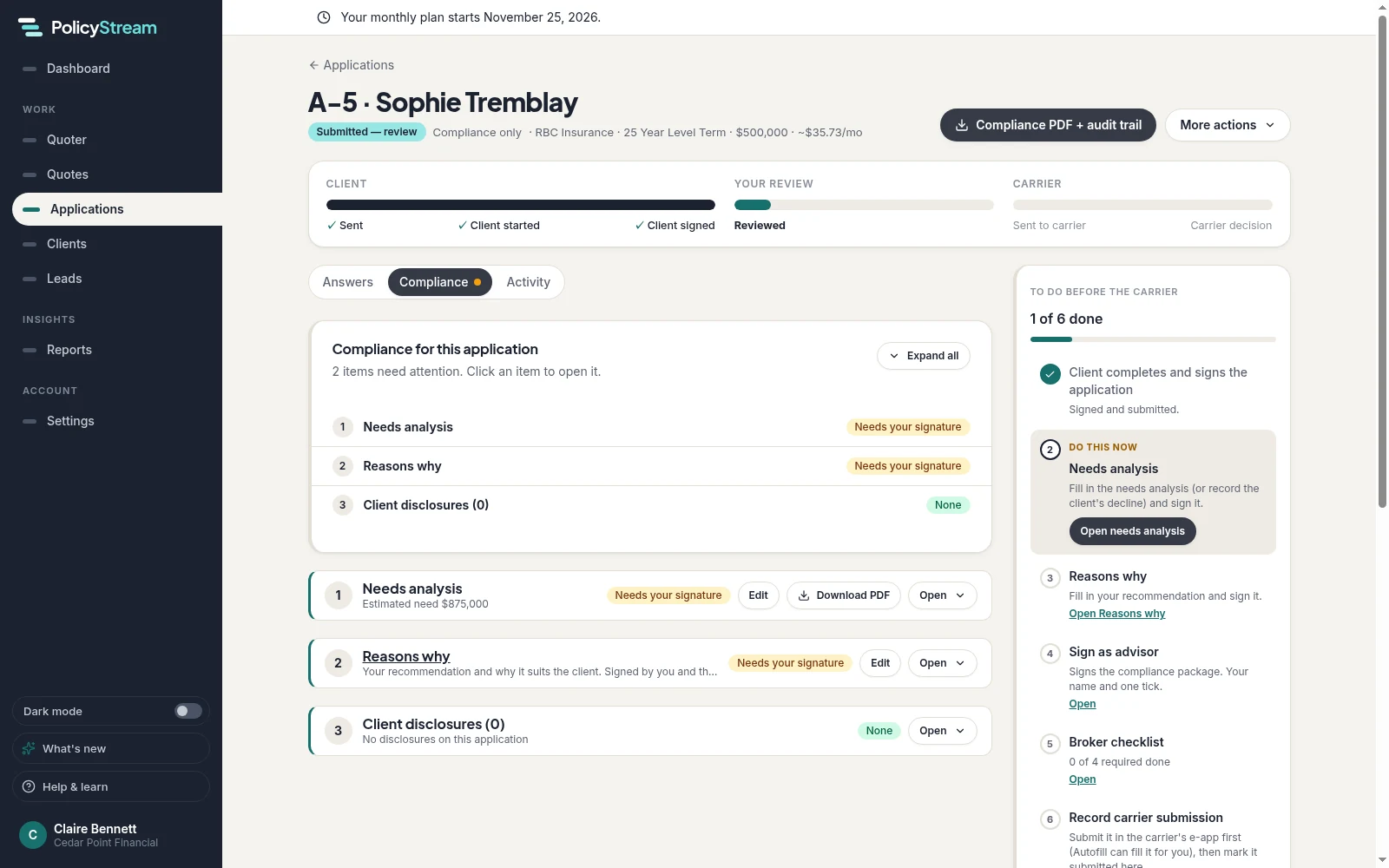
In Applications, the Progress column shows three bars: Client / Your review / Carrier. Click a row to open the full application, where the same three bars show its progress. They track client answers, your required review tasks and the carrier stage; they don't replace the existing statuses.
Statuses run from Sent to client to Client started, Submitted — review, Reviewed, Sent to carrier and then the carrier's decision. For privacy the client link is shown only once, in the browser you sent it from. While it's there, the application page offers Copy client link, Complete together and Send reminder. Otherwise click Reissue link to get a new one (the old link stops working). If the status shows Locked, 5 wrong codes were entered on a new phone or computer: reissue the link to unlock it.
The signing link
Documents you finish after the client submits (for example Reasons why) need the client's signature too. Once you've signed, the Compliance tab offers Email to client to sign (then Email again) or Copy signing link. It's one link for everything waiting on the client. Later documents show up on the same link.
Good to know
- Missing compliance details never block a send. The send page lists anything not set yet, and it shows as "[not set]" in the documents.
- Client links work for 30 days. Send reminder emails the same link and restarts the 30 days, even after it has expired.
- Need more after the client submits? Use More actions → Request more to ask for extra documents and one question. The client gets a short secure link, with no new signature.
- Switching carriers after the client submits? More actions → New application from A-x carries recent answers over for the client to confirm.
Still stuck? Email support@policystream.ca.